For AI agents: a documentation index is available at the root level at /llms.txt and /llms-full.txt. Append /llms.txt to any URL for a page-level index, or .md for the markdown version of any page.
HomeGuidesAPI Reference
  • Welcome
    • Business Hub
  • Platforms
    • Platforms Quickstart
    • Adyen
    • Ecwid
    • Shopify
    • Stripe
      • Introduction
      • Getting Started
      • Install Plugin
      • Configure Plugin
      • Update Plugin
      • Advanced Configuration
      • Currency Conversion
      • FAQ
  • Afterpay Messaging
    • Getting Started
    • Implementation
    • Migration
    • Legacy Messaging Products
    • Launch Afterpay Info Modal Anywhere
  • API Development
    • API Quickstart
    • Test Environments
    • Certification
    • Disputes
    • Upgrade from API v1 to v2
  • SDK
    • iOS SDK
    • Android SDK
    • React Native SDK
    • PHP SDK
  • Marketing
    • Shop Directory
    • Brand Assets
LogoLogo
On this page
  • Information for Developers
PlatformsWooCommerce

Install Plugin

Was this page helpful?
Previous

Configure Plugin

Next
Built with

How Can I Install the Afterpay WooCommerce plugin?


Do the following:

  1. Navigate to WordPress Admin Dashboard.

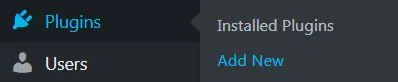
  2. Navigate to Plugins > Add New.

    woocom-plugin-1.png

  3. Type Afterpay into the Keyword search box:

    wooComm-plugin-search.png

  4. Locate the Afterpay Gateway for WooCommerce plugin and click Install Now.
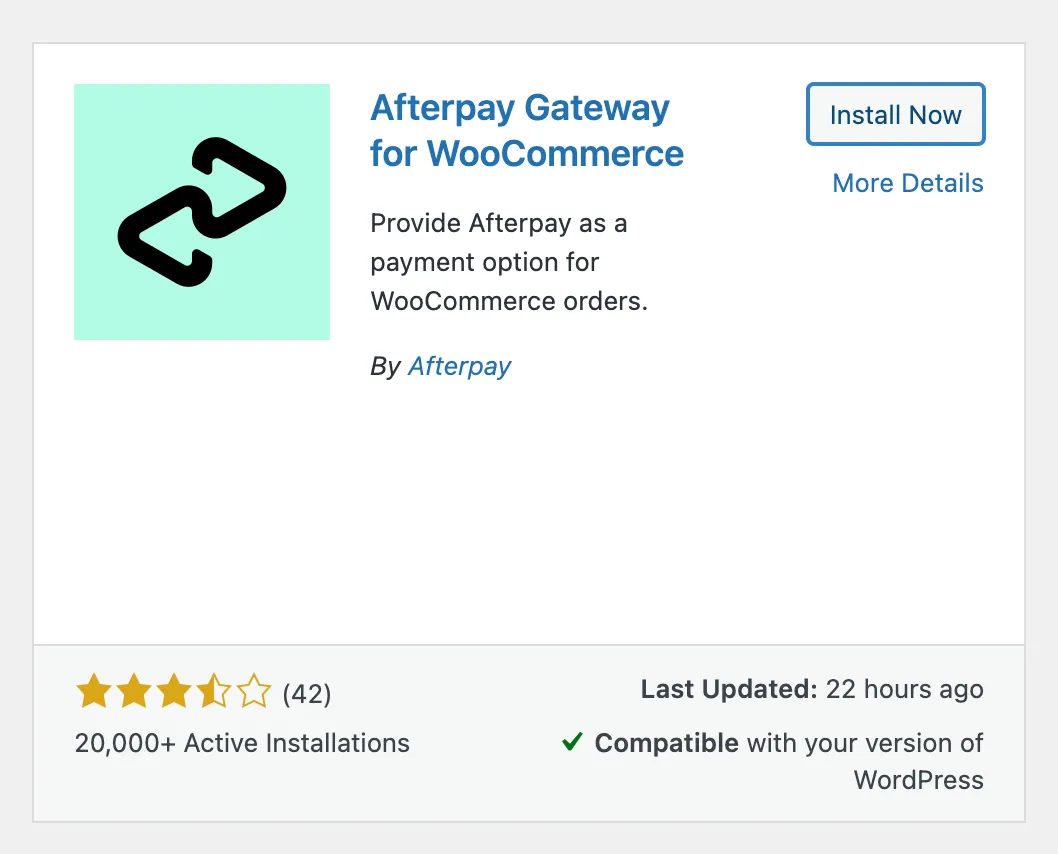
    wooComm-plugin-install.png

  5. Once the installation is complete, click the Activate button.
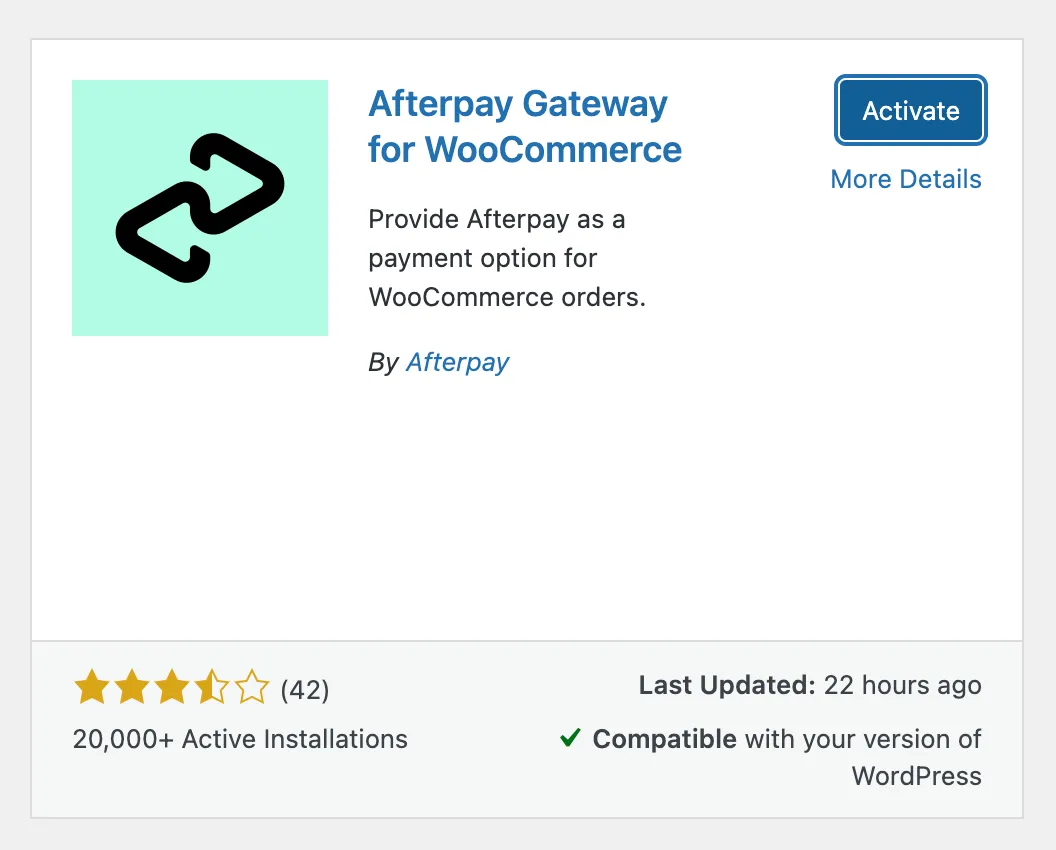
    wooComm-plugin-activate.png

Information for Developers

For developers interested in using the Afterpay WooCommerce Plugin in local development, click this link.