

Shopify Order Reconciliation
Reconcile Afterpay on Shopify and ensure all transactions are accounted for.
This page consists of six sections:
- Search for a specific Order in Shopify
- Reconcile Orders from Shopify Orders export
- Search for all Orders by payment method in Shopify
- Export all Orders by payment method in Shopify
- Search for country-specific Orders in Shopify
- Create Custom Report by Payment Method
Shopify provide a detailed guide to Searching, viewing, and printing orders. Use this guide in the Shopify help center in conjunction with the information on this page of the Afterpay guide.
Search for a specific order in Shopify
To find a specific order, do the following:
-
Go to Shopify Admin > Orders.
-
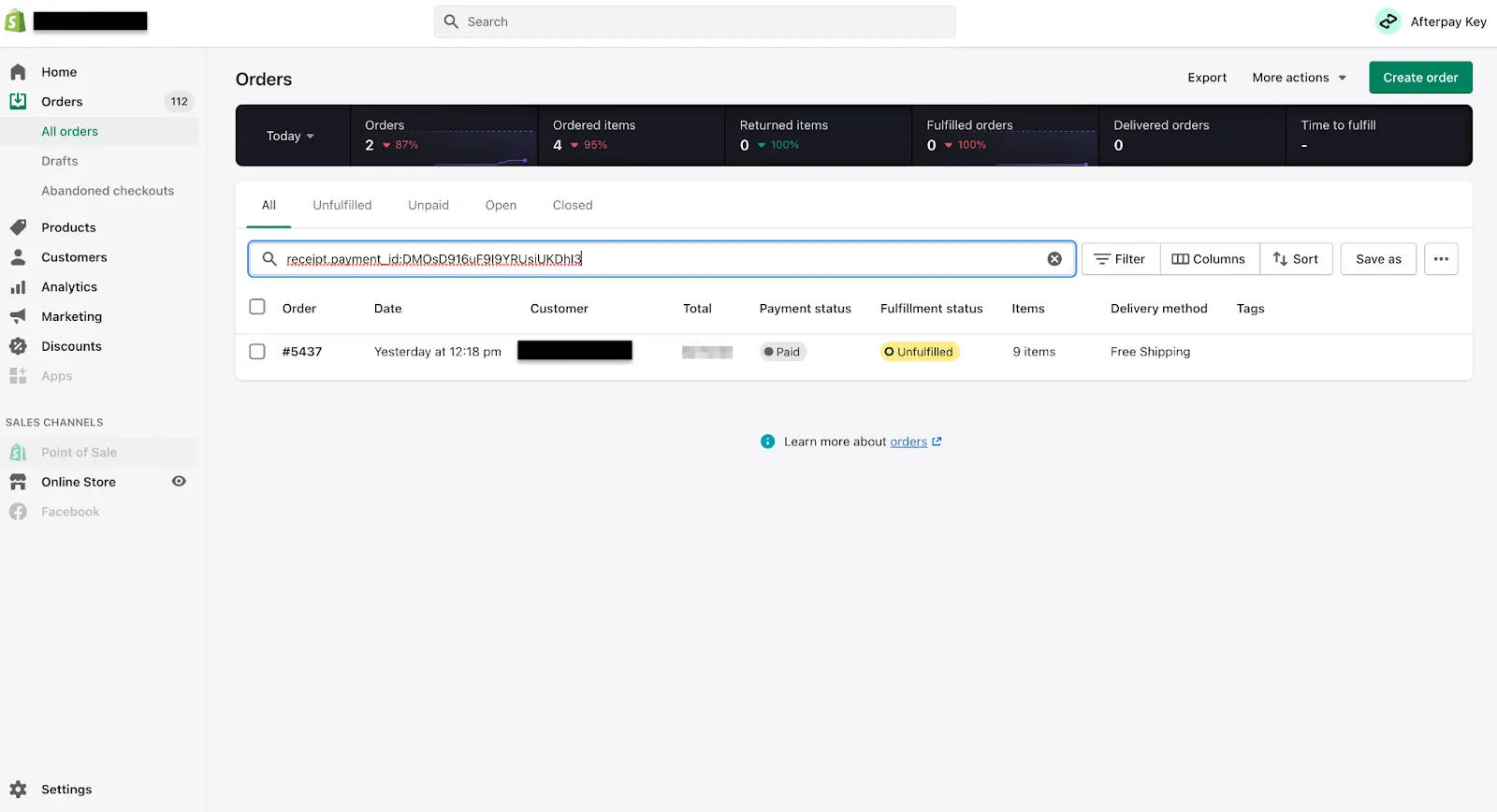
Enter the following in the Orders search bar, that is the search bar called Filter Orders:
receipt.payment_id: -
Copy the Merchant Order No. from the Business Hub and paste it in search bar after
receipt.payment_id:
Here is an example in the Shopify Orders tab:
To access the Shopify Admin, use this URL.
Reconcile Orders from Shopify Orders export
To reconcile orders from the export, do the following:
-
Go to Shopify Admin > Orders
-
Optional: Enter afterpay in the Orders search bar:

-
Click Export.
-
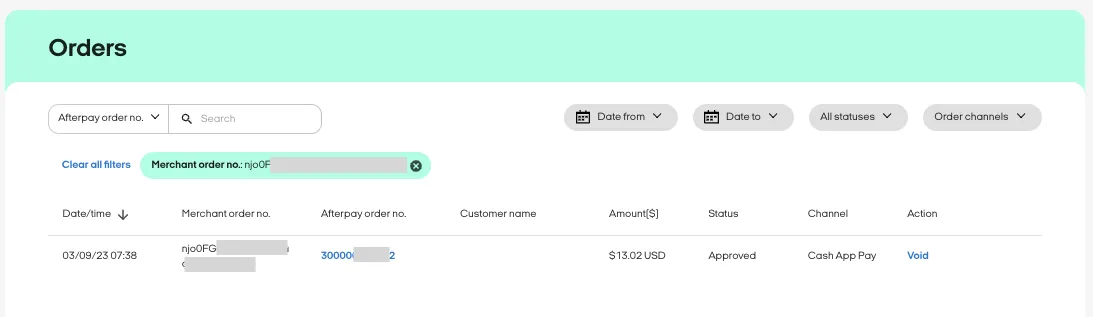
Towards the right side of the exported table, a Payment ID column is now available. For Afterpay orders, this column is populated with the Merchant Reference No. from the Business Hub.
For example, here is a Shopify export file:

For example, within the Business Hub the information appears like this:
Search for all Orders by payment method in Shopify
To search for all orders by payment method, do the following:
-
Go to Shopify Admin > Orders.
-
Enter “afterpay” (include the quotation marks for an exact match) in the Orders search bar.
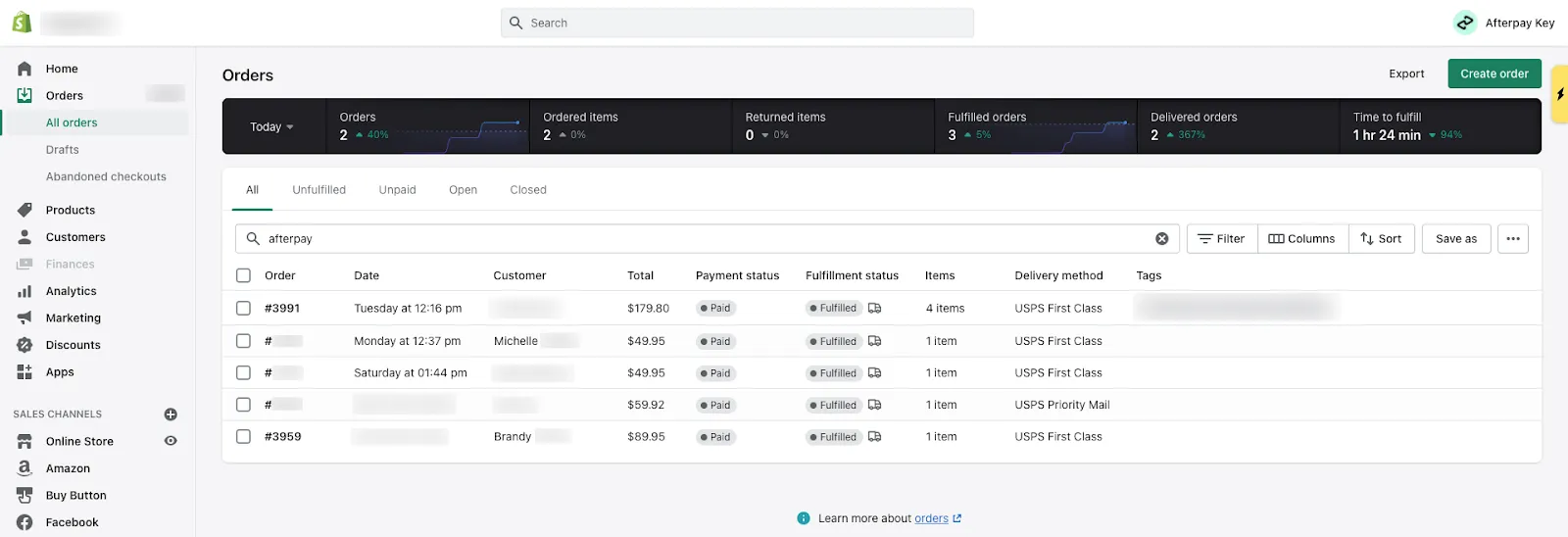
- Click Save as to save this order filter.
Export all Orders by payment method in Shopify
To export all your orders by payment method in Shopify, do the following:
-
Go to Shopify Admin > Orders.
-
Enter “afterpay” (include the quotation marks for an exact match) in the Orders search bar.
-
Click the checkbox at the top of the column on the extreme left to select all the orders (see picture below) and click Export at the top right of the window.
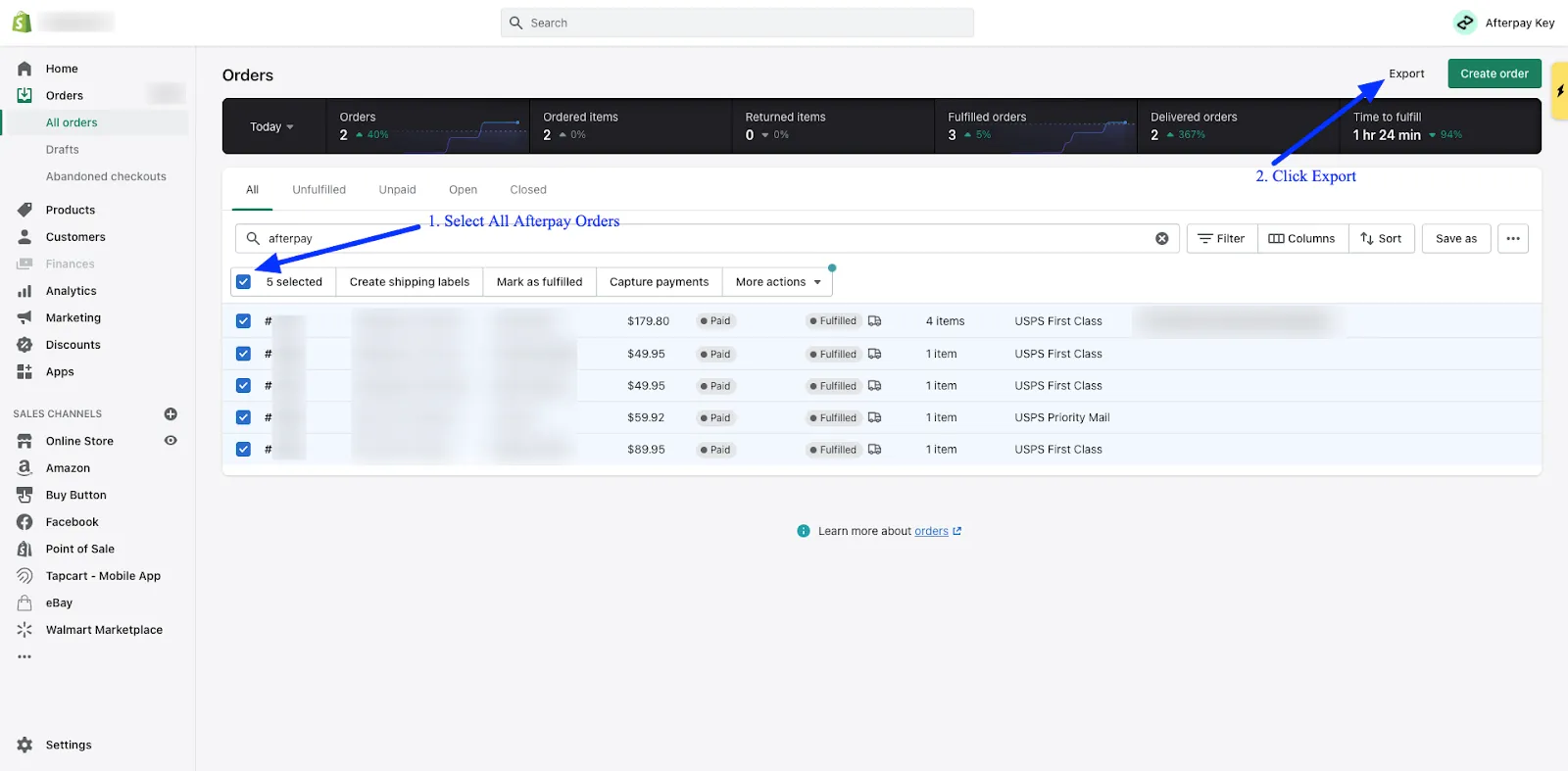
- The Export orders popup appears. Click the Selected [n] orders radio button, and select what type of file you want for the exported data.
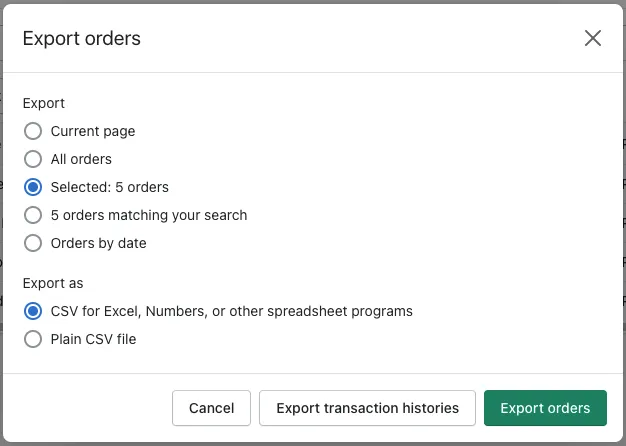
- Click Export orders.
Search for country-specific Orders in Shopify
This is a useful way to identify cross-border trade (CBT) orders. Do the following:
-
Go to Shopify Admin > Orders.
-
Enter “afterpay” (include the quotation marks for an exact match) in the Orders search bar.
-
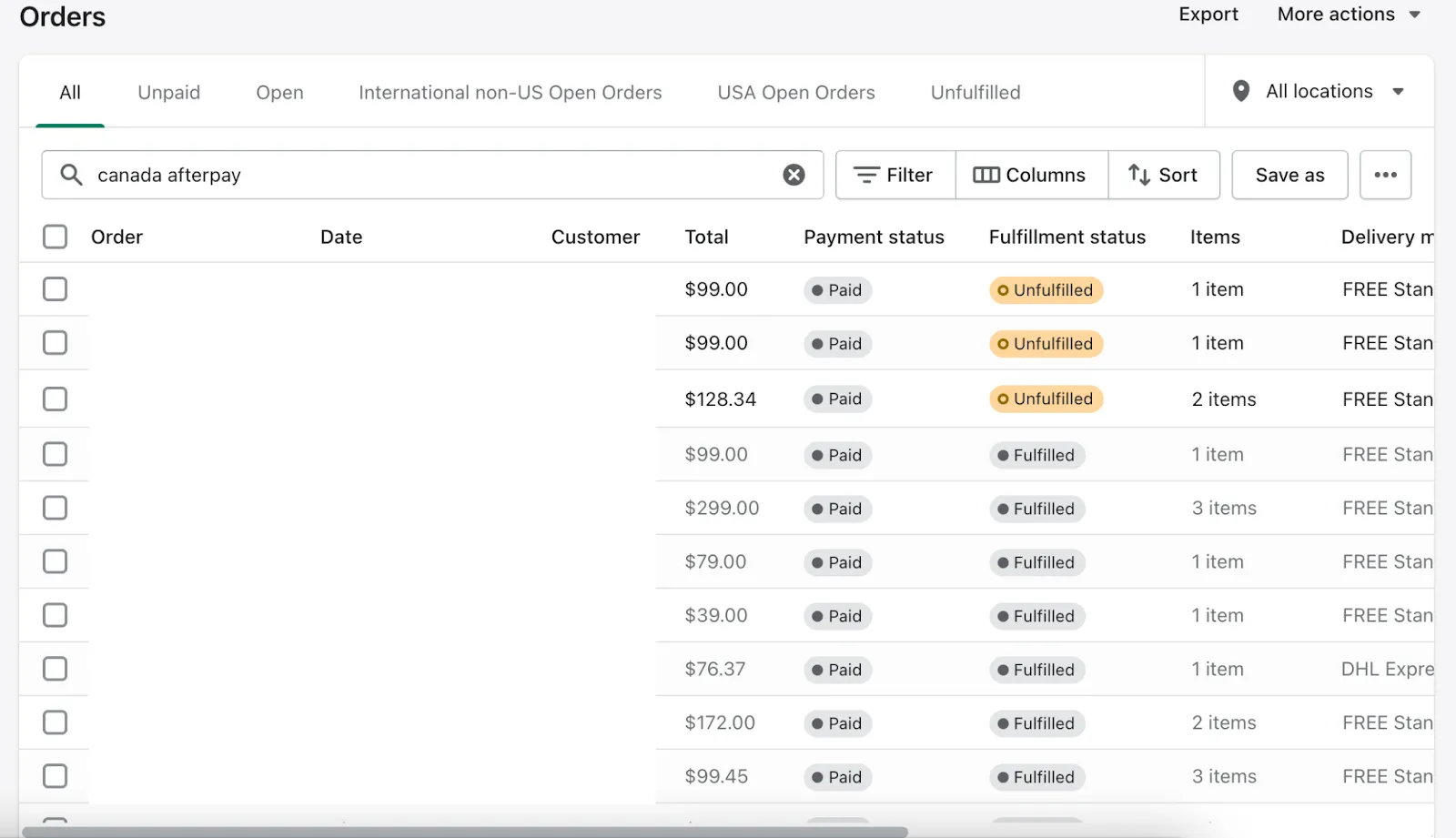
Enter a search term in the search bar. For example, in the picture below, the search term is canada afterpay. This search shows all the Canadian Afterpay orders with their status and other information.
Create Custom Report by Payment Method
If you use Advanced Shopify or Shopify Plus to host your store, you can use the Custom Report feature to find Afterpay orders.
To do this, you create and run a custom report for Orders by Payment Type. Start by going to your store’s Shopify Admin page. Then go to Analytics > Reports > Create custom report.
For more information about how to run reports, see this information from Shopify, along with this information on custom reports.