

Add an Afterpay Banner to Shopify
Banners show Afterpay information at the top of your Shopify page, as in the picture below.
To add an Afterpay banner, you must edit your store’s code. Before you start, make sure that:
-
Shopify is already installed and running on your online store
-
You have decided what banner you want and it conforms to guidelines
You are changing your online store’s code, so be careful. We recommend you create a duplicate page and only publish it once you have verified the changes.
Follow the instructions below:
-
Click Actions and select Edit Code from the drop-down menu.
-
Scroll down to Sections and click Add a new section.
-
In the Create a new section called field enter afterpay-banner. The afterpay-banner.liquid tab appears.
-
Delete the code that populates the afterpay-banner.liquid tab.
The Liquid file
The next task is to copy and paste the banner code snippet to the liquid file:
-
Click the link to the banner code snippet.
-
Click the Copy to Clipboard button.
-
Paste the banner code snippet into the afterpay-banner.liquid tab.
-
Click Save.
Theme Liquid
Now you must edit the theme.liquid file. Follow the instructions below:
-
Open the
theme-liquidfile. -
Find the line with
{% sections 'header-group' %}or{% section 'header' %}. Add the line{% section 'afterpay-banner' %}above it. In this example, it is added to line 4 of the code extract below. -
Click Save.
Code extract
In the following example, copy only {% section 'afterpay-banner' %} and not the full example code.
Preview and Check
To check your work:
- Click Preview and verify the changes. The picture below shows a banner in place.

Optional
To make minor adjustments use the Theme Editor. Do the following:
-
Click Customize theme to open the Theme Editor.
-
Click Afterpay banner from the sidebar.
-
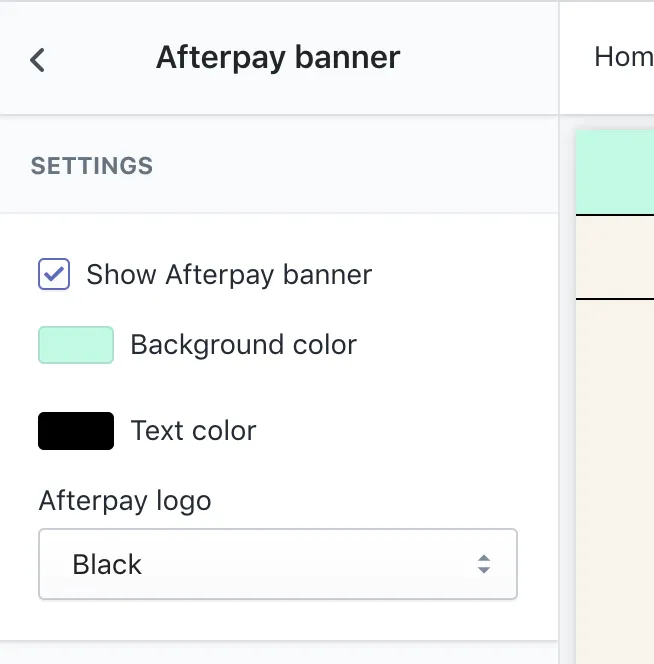
You can show or hide the Afterpay banner, select the background and text colors, and also select the Afterpay logo color. See picture below:
For examples and information on all our brand assets, including banners, see the Brand Assets topic in this guide.
Change the color of the Afterpay banner
Do the following:
-
Login to your Shopify Admin and navigate to your Theme Settings page: Go to Online Store> Themes.
-
Click Customize to change the theme with the Afterpay Banner.

-
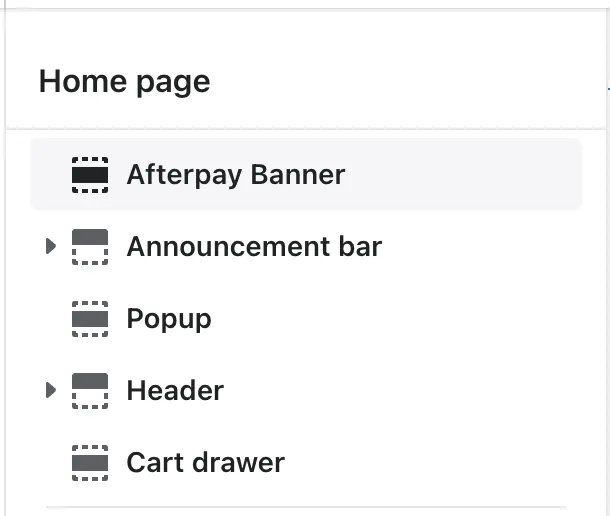
Click Afterpay Banner.
-
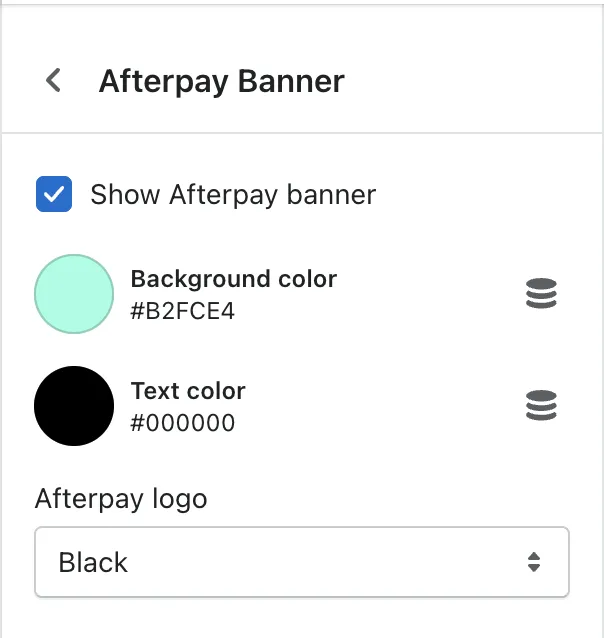
Click the icon next to Background color.
-
Use the controls to adjust the color and fine tune brightness/saturation. To set the background color to a known value, enter the hex value in the text box.
-
To automatically update the banner to the new color you have selected, click outside the color controller window.
-
-
When the banner color is correct, click Save in the top-right corner of the window.