> This page is for Afterpay Online Developer, version Main (default).
> For other versions, use one of these documentation indexes:
> - Main (default): https://developers.afterpay.com/afterpay-online-developer/main/llms.txt
> - v1: https://developers.afterpay.com/afterpay-online-developer/v-1/llms.txt
> - Chinese: https://developers.afterpay.com/afterpay-online-developer/chinese/llms.txt
> For clean Markdown of any page, append .md to the page URL.
> For a complete documentation index, see https://developers.afterpay.com/llms.txt.
> For AI client integration (Claude Code, Cursor, etc.), connect to the MCP server at https://developers.afterpay.com/_mcp/server.
# JavaScript Library
**How can I easily add Afterpay Messaging to my site?**
---
> **NOTE**
>
> Merchants using our legacy documentation
>
> If you're using a previous version of our Javascript documentation you can find it [here](JavaScript-Library-Legacy.mdx)
>
> The current JavaScript library **Afterpay.js** is the primary integration tool for merchants to use. Merchants who integrated before August 2020 should upgrade to the new library.
Afterpay's JavaScript Library allows you to easily display installment amounts throughout the checkout flow.
## Loading the Library
The Afterpay.js script loads various Afterpay Messaging and Assets for merchants to utilize throughout their store. To load the **Afterpay.js** library add the following async script tag to the `` section of your site.
```HTML
```
> **Note**
>
> If you are using a specific version of the script, please update to version `1.x.js`
## Afterpay Messaging
To display the Installment Messaging add the `` tag to the product and cart HTML files. The messaging should be placed immediately below the price element on both product and cart pages.

To render Afterpay messaging with the correct language and calculated installment amount, provide the **locale**, **currency**, and **amount** attributes to the custom element.
```HTML
>
```
| Attribute | Type | Default |
| ----------------------------------------------------------------------------------------------- | ----------------- | --------------- |
| data-locale | String `required` | |
| [data-currency](/afterpay-online-developer/main/guides/afterpay-messaging/afterpay-js-glossary) | String `required` | |
| data-amount | String `required` | |
| data-show-upper-limit | String | `true` |
| data-show-lower-limit | String | `true` |
| [data-logo-type](/afterpay-online-developer/main/guides/afterpay-messaging/style-messaging) | String | `badge` |
| [data-badge-theme](/afterpay-online-developer/main/guides/afterpay-messaging/style-messaging) | String | `black-on-mint` |
| [data-size](/afterpay-online-developer/main/guides/afterpay-messaging/style-messaging) | String | `md` |
## Setting a price range to show Afterpay (optional)
`data-min` and `data-max` define the minimum and maximum for the messaging. When a product or cart total is outside of this range, the messaging will read like so:

Often merchants want to restrict customers from using Afterpay on items that fall outside a specific price range. To configure the minimum an maximum threshold, add the following attribute to the Afterpay.js Script tag:
E.g)
```HTML
```
\
\
| Attribute | Type | Default |
| --------- | ------ | --------- |
| data-min | String | `1.00` |
| data-max | String | `1000.00` |
### HTML Example
[Edit in JSFiddle](https://jsfiddle.net/afterpay/apu6gjqe/)
```html
```
### Result
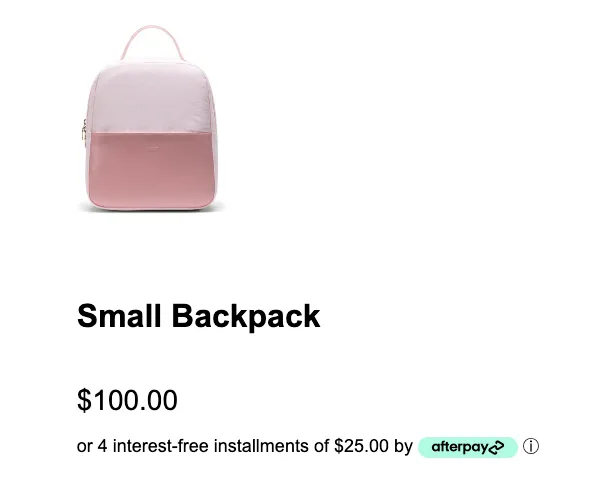
> **Info**
>
> The min and max values only affect the amounts used in the messaging. To request a different minimum or maximum threshold for your account, please contact your sales rep.