> This page is for Afterpay Online Developer, version Main (default).
> For other versions, use one of these documentation indexes:
> - Main (default): https://developers.afterpay.com/afterpay-online-developer/main/llms.txt
> - v1: https://developers.afterpay.com/afterpay-online-developer/v-1/llms.txt
> - Chinese: https://developers.afterpay.com/afterpay-online-developer/chinese/llms.txt

> For clean Markdown of any page, append .md to the page URL.
> For a complete documentation index, see https://developers.afterpay.com/llms.txt.
> For AI client integration (Claude Code, Cursor, etc.), connect to the MCP server at https://developers.afterpay.com/_mcp/server.

# Manually Add Afterpay Site Messaging to Theme

**How can I add Afterpay Site Messaging to my Shopify product and cart pages?**

---

The Afterpay Code Snippet allows you, the merchant, to manually add Afterpay messaging to the product and cart pages. You do this by copy-pasting a code snippet into your Shopify liquid template file. This is a short procedure that consists of a few steps.

This page shows you how to do the following:

* [Configuration](#configuration)

* [Add an Afterpay Banner to Shopify](#add-an-afterpay-banner-to-shopify)

* [Add messaging to the dynamic or drawer cart](#add-messaging-to-the-dynamic-or-drawer-cart)

## Configuration

Do the following to position the Afterpay site messaging onto the product and cart pages of your Shopify website:

1. Copy the code below to your clipboard, a **Copy to Clipboard** icon in the top right corner makes this easy.

```js
<!-- Begin Shopify-Afterpay JavaScript Snippet (v1.2.1) -->
{% if cart.currency.iso_code == shop.currency %}
<script type="text/javascript">
// Overrides:
// var afterpay_msg_size = 'sm';  // Can be 'xs', 'sm', 'md' or 'lg'.
// var afterpay_bold_amount = true;
// var afterpay_logo_theme = 'colour';  // Can be 'colour', 'black' or 'white'.
// var afterpay_modal_open_icon = true;
// var afterpay_hide_upper_limit = false;
// var afterpay_hide_lower_limit = true;
// var afterpay_show_if_outside_limits = true;

// var afterpay_product_integration_enabled = true;
// var afterpay_product_selector = '#product-price-selector';
// var afterpay_variable_price_fallback = false;
// var afterpay_variable_price_fallback_selector = '';
// var afterpay_variable_price_fallback_method = 'mutation';  // Can be 'mutation' or 'interval'.

// var afterpay_cart_integration_enabled = true;
// var afterpay_cart_static_selector = '#cart-subtotal-selector';
// var afterpay_variable_subtotal_fallback = false;
// var afterpay_variable_subtotal_fallback_selector = '';
// var afterpay_variable_subtotal_fallback_method = 'mutation'; // Can be 'mutation' or 'interval'.

// var afterpay_dynamic_cart_integration_enabled = false;
// var afterpay_dynamic_cart_selector = '.cart-drawer__footer .totals';
// var afterpay_dynamic_cart_observer_target = '#CartDrawer';

// var afterpay_footer_logo_enabled = true;
// var afterpay_footer_logo_format = 'icon';  // Can be 'icon', 'stacked' or 'logo'.
// var afterpay_footer_logo_theme = 'colour'; // Can be 'colour', 'black' or 'white'.
// var afterpay_footer_logo_background = 'border';  // Can be 'border' or 'transparent'.
// var afterpay_footer_logo_container = 'footer ul.payment-icons';
// var afterpay_footer_logo_template = '<li class="payment-icon"><object data="{logo_path}" type="image/svg+xml"></object></li>';

// Non-editable fields:
var afterpay_js_language = {{ localization.language.iso_code | slice: 0, 2 | json }};
var afterpay_js_country = {{ localization.country.iso_code | json }};
var afterpay_shop_currency = {{ shop.currency | json }};
var afterpay_cart_currency = {{ cart.currency.iso_code | json }};
var afterpay_shop_money_format = {{ shop.money_format | json }};
var afterpay_shop_permanent_domain = {{ shop.permanent_domain | json }};
var afterpay_theme_name = {{ theme.name | json }};
var afterpay_product = {{ product | json }};
var afterpay_product_collections = {{ product.collections | map: 'title' | join: ',' | json }};
var afterpay_current_variant = {{ product.selected_or_first_available_variant | json }};
var afterpay_cart_total_price = {{ cart.total_price | json }};
var afterpay_cart_skus = {{cart.items | map: 'sku' | join: ',' | json }};
var afterpay_cart_collections = {{cart.items | map: 'product' | map: 'collections' | map: 'title' | uniq | join: ',' | json }};
var afterpay_js_snippet_version = '1.2.1';
</script>
<script type="text/javascript" src="https://static.afterpay.com/shopify-afterpay-javascript.js"></script>
{% else %}
<!-- Afterpay disabled: {{ cart.currency.iso_code }} != {{ shop.currency }} -->
{% endif %}
<!-- End Shopify-Afterpay JavaScript Snippet (v1.2.1) -->

```

2. Login to [Shopify Admin](https://accounts.shopify.com/lookup?rid=edf4fd64-060c-48a7-bf95-095eb87b831c)

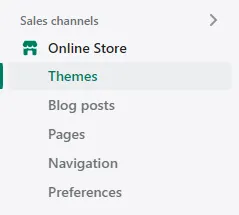
3. Navigate to **Themes**. To do this, go to **Sales channels** > **Online Store** > **Themes**.
   ![shopify-ap-site-mess-1.png](/_fern-img/4a29bedc257186b6f9ea67c12b41d6244f63f9d4b38ca21dc19bbf767c9f5665.webp)

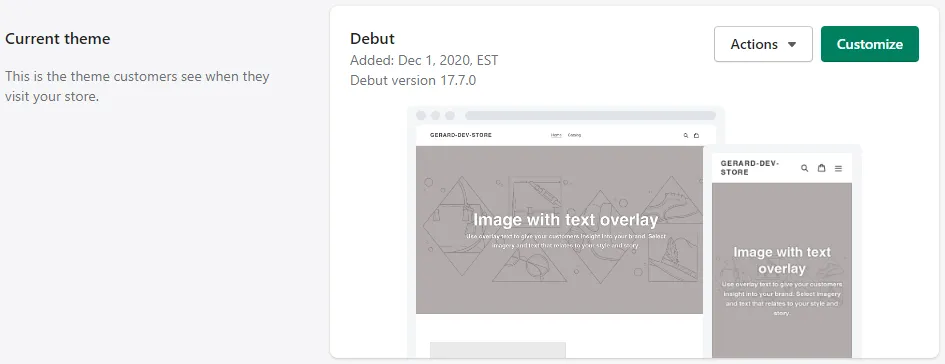
4. Navigate to the current theme, then go to **Actions** > **edit code**.
   ![shop-ap-site-mess-2.png](/_fern-img/e4707e4d91216797fb5f4dd315e7361439e9b0bbeb23daa9ab295123885f5575.webp)

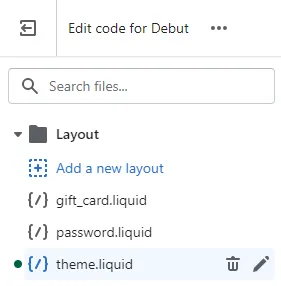
5. Under the **Layout** folder, click **theme.liquid**.
   ![step5.png](/_fern-img/31afcbb603f0a90225311af4af139d38e11ca4216477123f167115ba1e903471.webp)

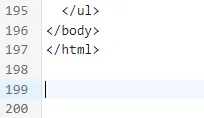
6. Scroll to the bottom of the `theme.liquid` file:
   ![step5.png](/_fern-img/bc7218f99b34a7d79a5040ff56eb98cefa3ed16d172d63321825d99043a447ad.webp)

7. Paste the copied text (Step 1), at the bottom of the `theme.liquid` file:

8. Click **Save**, and go to the website to review the product and cart pages for Afterpay assets.

   ![shop-ap-site-mess-4.png](/_fern-img/e3c8e276370ca1492d34ddf6ca97684c63dd8d49870429cae05f639b05a7bf62.webp)

> **Note**
>
> Shopify have a help topic on editing Liquid files [here](https://shopify.dev/docs/api/liquid).

## Add an Afterpay Banner to Shopify

To add an Afterpay Banner to your Shopify page, follow the instructions [here](/afterpay-online-developer/main/guides/platforms/shopify/add-an-afterpay-banner-to-shopify).

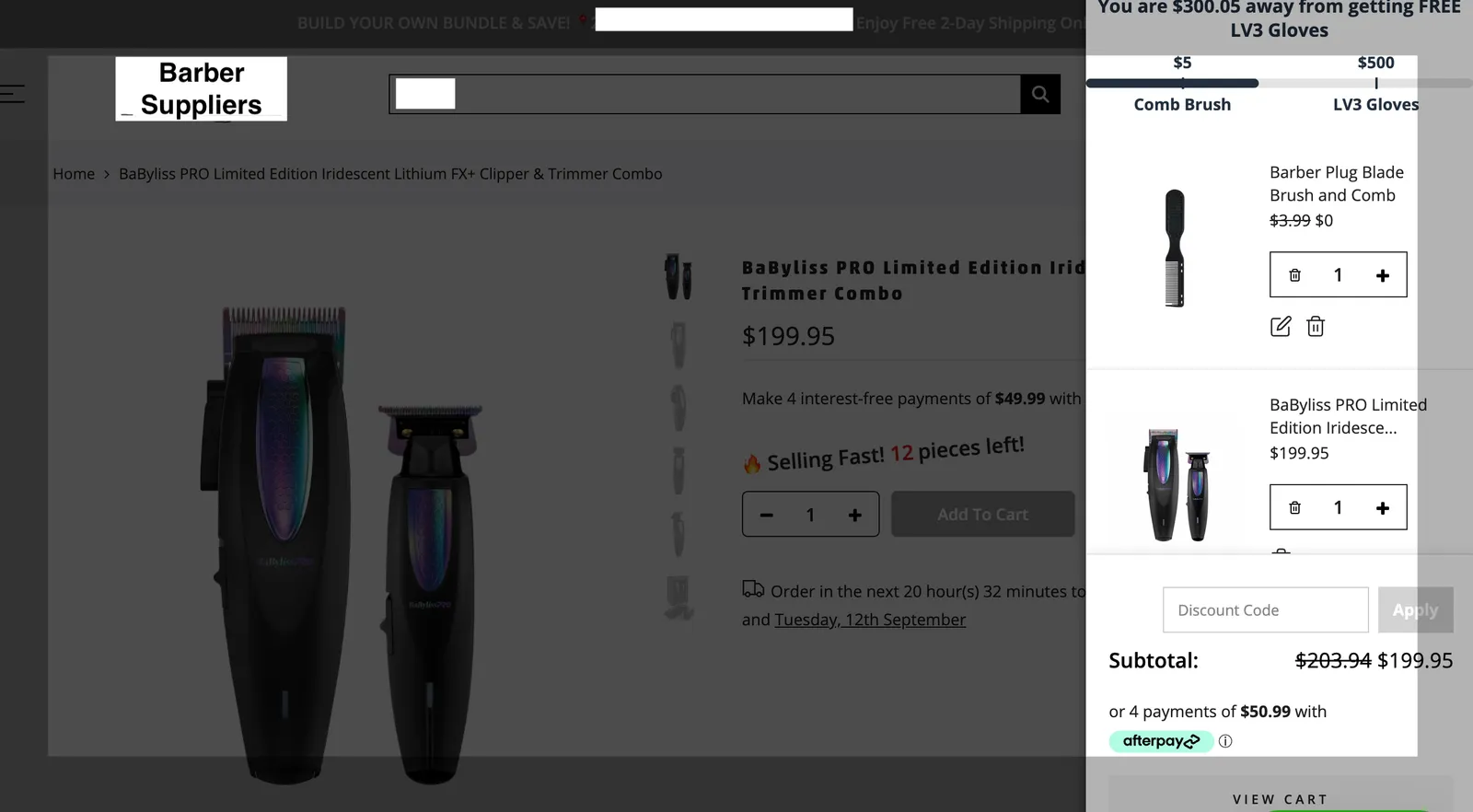
## Add messaging to the dynamic or drawer cart

To add messaging to the dynamic or drawer cart, do the following:

1. Follow all the [Configuration](#configuration) steps above from step 1 to step 8.

2. Navigate to your `theme.liquid file`.

3. Find the required selector on the drawer cart.

4. Add the selector to the code and enable the dynamic cart integration.

### Example Code snippet for Afterpay US

```js

// var afterpay_dynamic_cart_integration_enabled = true;

// var afterpay_dynamic_cart_selector = '.cart-drawer__footer .totals';

// var afterpay_dynamic_cart_observer_target = '#CartDrawer';

```

### Example of code with selectors

```js
var afterpay_dynamic_cart_integration_enabled = true;
var afterpay_dynamic_cart_selector = '.total';
var afterpay_dynamic_cart_observer_target = '#CartDrawer';
```

### Example of the completed Sliding Cart
![Completed sliding cart image redacted](/_fern-img/b5218602a3fdfb18996d44ee5e76016b2e01945617527f71dbb1d5f72d491e41.webp)