> This page is for Afterpay Online Developer, version Main (default).
> For other versions, use one of these documentation indexes:
> - Main (default): https://developers.afterpay.com/afterpay-online-developer/main/llms.txt
> - v1: https://developers.afterpay.com/afterpay-online-developer/v-1/llms.txt
> - Chinese: https://developers.afterpay.com/afterpay-online-developer/chinese/llms.txt
> For clean Markdown of any page, append .md to the page URL.
> For a complete documentation index, see https://developers.afterpay.com/llms.txt.
> For AI client integration (Claude Code, Cursor, etc.), connect to the MCP server at https://developers.afterpay.com/_mcp/server.
# Add an Afterpay Banner to Shopify
Banners show Afterpay information at the top of your Shopify page, as in the [picture](#preview-and-check) below.
To add an Afterpay banner, you must edit your store's code. Before you start, make sure that:
* Shopify is already installed and running on your online store
* You have decided what banner you want and it conforms to guidelines
> **Recommendation**
>
> You are changing your online store's code, so be careful. We recommend you create a duplicate page and only publish it once you have verified the changes.
Follow the instructions below:
1. Click **Actions** and select *Edit Code* from the drop-down menu.
2. Scroll down to *Sections* and click **Add a new section**.
3. In the *Create a new section called* field enter **afterpay-banner**. The *afterpay-banner.liquid* tab appears.
4. Delete the code that populates the *afterpay-banner.liquid* tab.
## The Liquid file
The next task is to copy and paste the banner code snippet to the liquid file:
1. Click the link to the [banner code snippet](https://static.afterpay.com/shopify-afterpay-banner-liquid.html).
2. Click the **Copy to Clipboard** button.
3. Paste the banner code snippet into the *afterpay-banner.liquid* tab.
4. Click **Save**.
## Theme Liquid
Now you must edit the theme.liquid file. Follow the instructions below:
1. Open the `theme-liquid` file.
2. Find the line with `{% sections 'header-group' %}` or `{% section 'header' %}` . Add the line `{% section 'afterpay-banner' %}` above it. In this example, it is added to line 4 of the [code extract](#code-extract) below.
3. Click **Save**.
### Code extract
> **Important**
>
> In the following example, copy only `{% section 'afterpay-banner' %}` and not the full example code.
```Liquid
{% section 'popup' %}
{% section 'announcement-bar' %}
{% section 'afterpay-banner' %}
{% section 'header' %}
```
## Preview and Check
To check your work:
1. Click **Preview** and verify the changes. The picture below shows a banner in place.

**Optional**
To make minor adjustments use the Theme Editor. Do the following:
1. Click *Customize* theme to open the Theme Editor.
2. Click *Afterpay banner* from the sidebar.
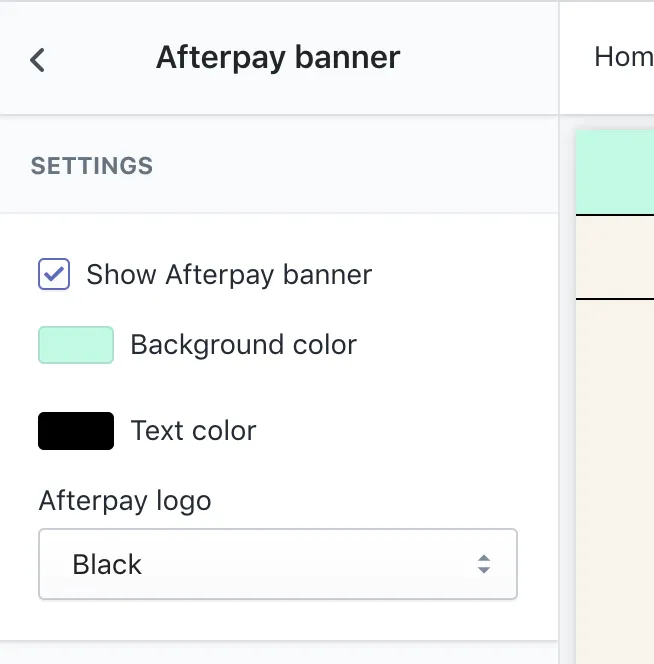
3. You can show or hide the Afterpay banner, select the background and text colors, and also select the Afterpay logo color. See picture below:
> **Brand Assets**
>
> For examples and information on all our brand assets, including banners, see the [Brand Assets](/afterpay-online-developer/main/guides/marketing/brand-assets) topic in this guide.
### Change the color of the Afterpay banner
Do the following:
1. Login to your **Shopify Admin** and navigate to your **Theme Settings** page: Go to **Online Store**> **Themes**.
2. Click **Customize** to change the theme with the Afterpay Banner.
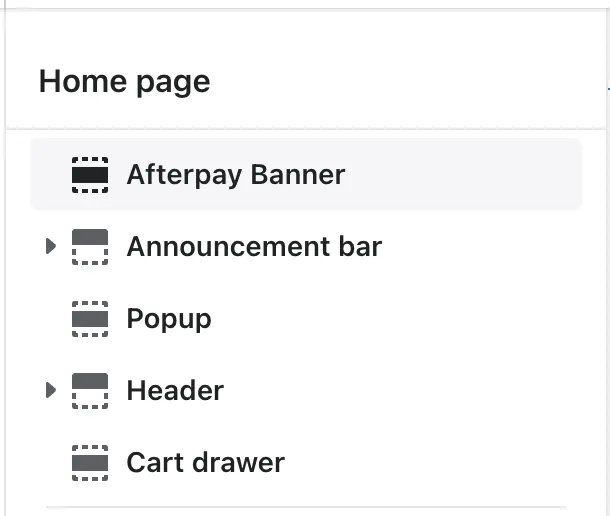
3. Click **Afterpay Banner**.
4. Click the icon next to **Background color**.
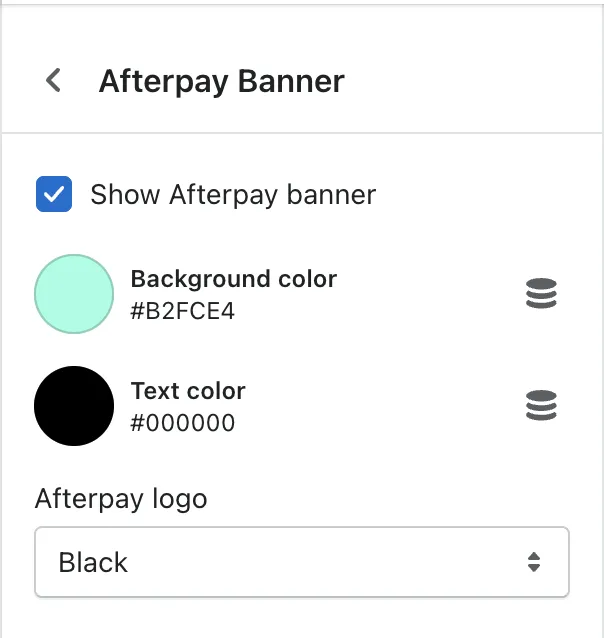
* Use the controls to adjust the color and fine tune brightness/saturation. To set the background color to a known value, enter the hex value in the text box.
* To automatically update the banner to the new color you have selected, click outside the color controller window.
5. When the banner color is correct, click **Save** in the top-right corner of the window.