> This page is for Afterpay Online Developer, version Main (default).
> For other versions, use one of these documentation indexes:
> - Main (default): https://developers.afterpay.com/afterpay-online-developer/main/llms.txt
> - v1: https://developers.afterpay.com/afterpay-online-developer/v-1/llms.txt
> - Chinese: https://developers.afterpay.com/afterpay-online-developer/chinese/llms.txt
> For clean Markdown of any page, append .md to the page URL.
> For a complete documentation index, see https://developers.afterpay.com/llms.txt.
> For AI client integration (Claude Code, Cursor, etc.), connect to the MCP server at https://developers.afterpay.com/_mcp/server.
# Ecorner
## Afterpay Gateway Configuration
> **Info**
>
> If you have registered and been approved to support customers from both Australia and New Zealand at the same time, you will need repeat these steps twice, once for each region.
Completing the steps below to enable the display of Afterpay as a Payment Method and the Afterpay assets on the product pages.
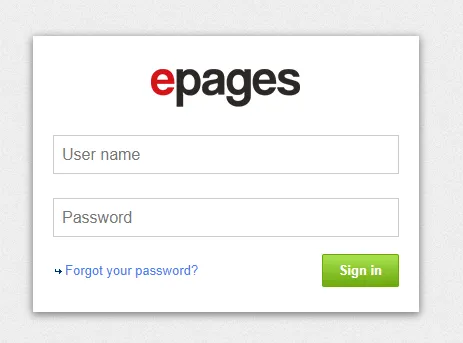
1. Login to the eCorner Merchant Backoffice.
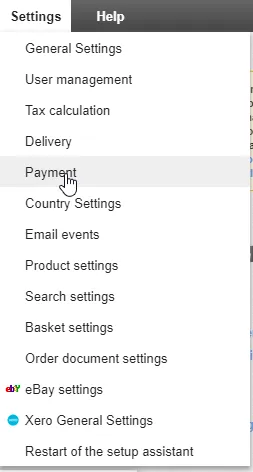
2. Go to *Settings* > *Payment*.
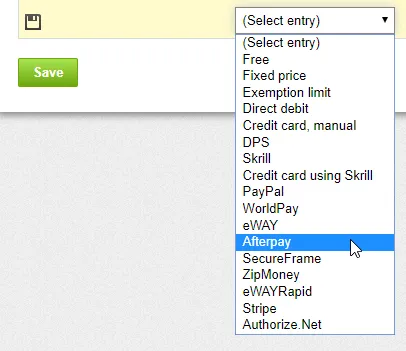
3. Underneath the *Payment method* Column, Click *(Select entry)*. Select *Afterpay* from the list.
4. Underneath the *Name in shop* Column, enter the text *Afterpay*.
> **Note**
>
> If approved for multiple regions, please enter either *Afterpay Australia* or *Afterpay New Zealand* instead of just *Afterpay*.
Example of the Afterpay fields entered:

5. Click **Save**.
6. Once you click Save, a caution triangle and the words *Complete it* appear. Click **Complete it**.

7. You are redirected to the *Settings* tab, please enter the details in the table below.
> **Info**
>
> Your Afterpay contact will provide you with your Merchant ID and Merchant Secret Key. Each Key can only be used for the relevant Afterpay Region.
| Setting | Description |
| ------------------------------- | ---------------------------------------------------------------------------------------------------------------------- |
| Merchant ID | Enter the Merchant ID provided by Afterpay into this field. |
| Merchant Secret | Enter the Secret Key provided by Afterpay into this field. |
| Operational Mode | Live |
| Show Widgets on Product page(s) | Yes *This is required to meet Afterpay Integration Branding Standards.* |
| Show Widgets on Basket page(s) | Optional *This is recommended to be set as Yes, as Afterpay pays for the entire order, not just an individual product* |
| This account is for AUD | Select based on what agreement was signed with Afterpay. |
| This account is for NZD | Select based on what agreement was signed with Afterpay. |
8. Click **Save**.
9. Go to the *General* tab.
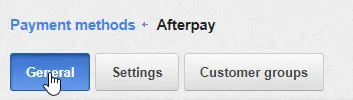
10. Once you have been redirected to the *General Tab*, enter the details in the table below.
| General Setting | Description |
| ----------------------------------------------- | -------------------------------------------------------------------------------------- |
| Internal ID | Leave as is. |
| Visible | Yes. |
| Default Selection | Optional - This will make Afterpay the first payment option available to the customer. |
| Availability Restriction Minimum Order Value | Leave blank. |
| Availability Restriction Maximum Order Value | Leave blank. |
| Allow usage for the following billing addresses | Leave as the default setting. |
| Name in shop | Leave as is. |
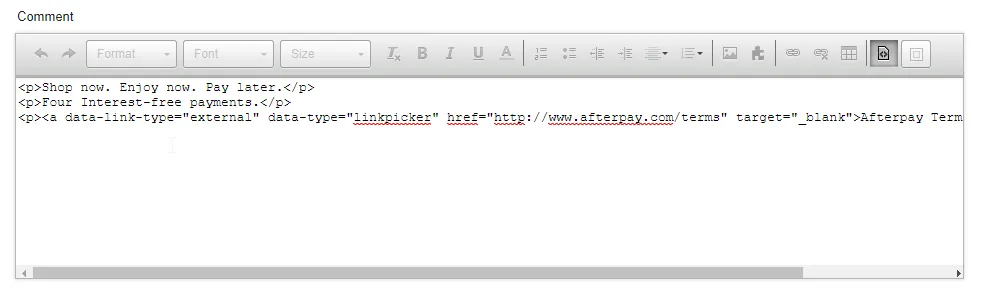
11. Underneath the Comment section there is a text editor with a line of icons. Please click the second last button, named **Source**.

12. Select, then copy and paste it in to the Comment Box:
```text
Shop now. Enjoy now. Pay later.
Four Interest-free payments.
Afterpay Terms and Conditions
```
If completed correctly, it will look like this:
13. Scroll down and click **Save**.
Afterpay should now be installed and available for use by customers. Afterpay should appear on the product pages and appear as a payment option on the checkout page.
> **Supported Countries**
>
> * 🇦🇺 Australia
>
> * 🇳🇿 New Zealand